We are multiple generations now with no experience with strikes, and I see a lot of confused, well meaning people who want to help but don’t know strike etiquette.
1. Never cross a picket line of striking workers.
2. Never purchase or take free goods from a company who’s workers are striking
3. Honk to support strikers if you drive by a picket line.
4. Join strikers on the picket line even if it’s not your strike, but follow their directions and defer to them while there.
5. Say “that’s great, the strike is working, the company should negotiate with their workers” whenever someone complains about profits lost, inconveniences or other worker-phobic rhetoric. Always turn it back on the company, who has all the power and money.
This is not to be contrary, but from a genuine desire to understand… why not take free stuff? The company isn’t making money from it.
For example, McDonald’s is giving out free cheeseburgers on the day scheduled for a strike. Why not go in en masse, demand your free cheeseburger, and overwhelm them with orders that they can’t fulfill quickly. Loudly complain that they should have been prepared for the demand created for such a promotion and ask why more people aren’t on shift right now.
Again, I accept that there may be a flaw in my logic, but can’t see it myself? Help me out?
Companies, especially large multinationals, often give out free products to maintain a stronghold on market shares. When workers strike, their power lies in showing their employer that they can’t operate without them, and that they will lose money and customers if their business doesn’t reach people. When McDonald’s doesn’t give you a free hamburger, they think you will go to Burger King during the strike, get used to it and maybe never come back. Multinationals can afford to move their vast amounts of capital from region to region very easily, and will give away free products to try to limit their loss of customers during a strike. By not taking those products, you helping the workers leverage their only source of power, which they will use to negotiate fair wages, cost of living adjustments, breaks, overtime wage structures, holidays, extended benefits and an equitable grievance structure.
When you don’t engage at all with the company, you are helping these workers have time with their families, pay their rent, have healthcare, and set wage standards across industries. Even better, the less you engage the faster the company will cave, the faster the strike will be over and workers will be back at their jobs pulling a paycheque.
When you delete things off of a mobile device (like a phone or digital camera), the file goes to your phone’s recycle bin (just like on a desktop computer or laptop), typically an invisible folder named .trashes or .trash. There, it continues to take up the same amount of memory storage as it did before you ‘deleted’ it. To empty your mobile device’s recycling bin, plug your phone into your desktop or laptop via USB as a memory device, right click on your desktop/laptop’s recycling bin/trash, and tell it to empty your recycling bin/empty trash. Your computer will empty all .trash/.trashes folders, including the one on your phone, actually deleting the files permanently this time, freeing up your phone/camera’s memory space. Reblog to save a life.
(I know this works on MAC with my Andriod, it’s not too far a stretch to do the same on Windows and/or with other phones as well. In fact, it should be easier to do on Windows since Windows Explorer is more conducive to finding hidden folders.)
FINDING THIS RANDOM POST ON MY DASHBOARD GAVE ME THE BEST ANSWER TO SHIT I’VE BEEN GOOGLING ABOUT FOR MONTHS!!!
I was just semi-complaining that I was still looking for a decent way to backup my +6k posts without having to use paid services or even just wordpress (which has an import from tumblr tool that asks for permission to access your blog and also make posts), when I decided to actually put some effort into my google search.
Results were positive: I have successfully backed up my blog*
*By which I mean: everything that I have ever posted. Not included: drafts, queue, likes, followers, following, comments, notes, chat.
I followed this method (word by word), and now have a 450 MB folder on my computer with the name of my blog on it containing:
1. Folder “Archive” (contains .html files listed by month) 2. Folder “Media” (contains gifs and images, mine has +1k files in it; might contain also audios but I have no way of confirming that because I’ve never reblogged an audio post from this blog) 3. Folder “Posts” (contains single .html files, each one a post; I have +4k files in it) 4. Folder “Theme” (contains only my avatar, but it might be a matter of if you have personalized themes or not) 5. .html file “Index” (by opening it it will give you the archive of your blog organized by month; clicking on a month will open up the archive for that month, and you’ll be able to read all the posts for that month as if you were on your blog**, except sans your theme graphic, with each page containing 50 posts)
**I can see gifs, links, embedded videos, tags, number of notes (but I can’t open up the notes, clearly), text is also correctly formatted.
So yeah, in case anyone wants a very quick way to back up their blog, it took me less than 10 minutes.
P.S. I didn’t have any issue, but to be on the safe side always check for spyware and virus threats before and after downloading anything.
So this happened to me a few days ago, and I thought maybe sharing my experience could help someone if this happens to them in the future.
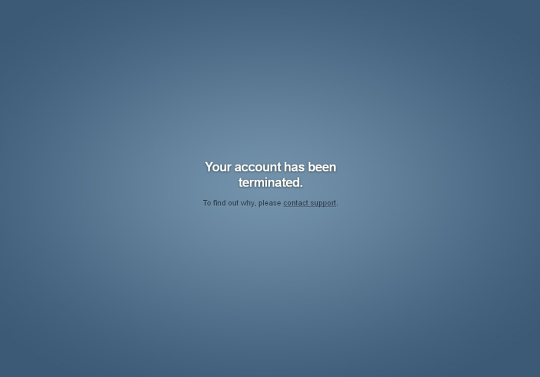
I was checking my Tumblr when suddenly I was logged out from it and given the usual Log In page. When I entered the details to access my blog, this appeared:
My heart skipped a bit. I tried to re-enter the details (maybe I got them wrong the first time), but no, the same message about Termination was shown. I typed my blog URL and got the
ominous
:
Same thing with my sideblogs.
So obviously I was very worried. I contacted the Tumblr support but didn’t get an answer for 48 hours, only an automated reply. I already started mentally saying goodbye to my blogs, my posts and all my followers, when finally I recieved their answer:
(In case you can’t see the picture, it says:
Hello, We’ve restored your account. Thank you for bringing this problem to our attention. We’re sorry that it occurred, and we’ll do our best to make sure that it doesn’t happen again. You should now be able to log in just fine with your email address and password. Please let me know if there’s anything else I can help you with.
My blog was restored and working normally. All my sideblogs were intact , and so were my posts and my followers. The only thing that was lost, is all the conversations by Messages. The people with whom you talked are still there, but all the history of the conversation is gone.
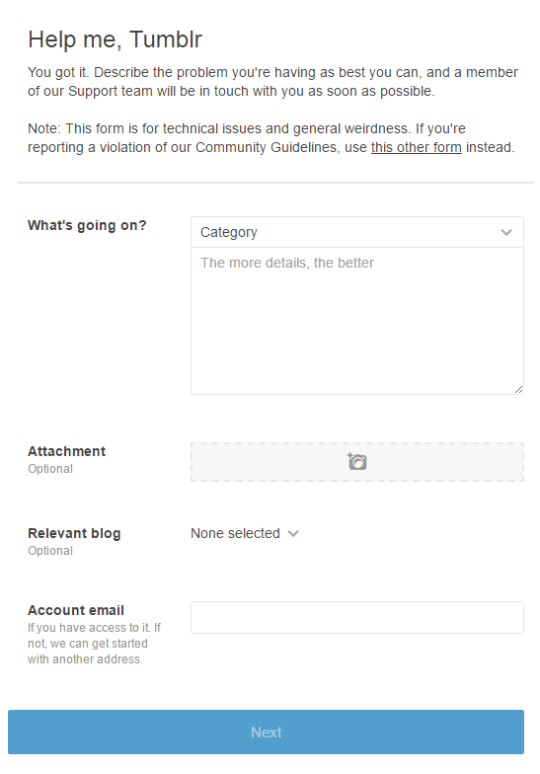
Alright so here is what you should do if this happens to you. Don’t panick like I did Click on the “contact support” link provided in the terminated window. Alternatively, go on Tumblr.com/support.
Politely explain your situation – give your blog URL, your mail, tell what happened exactly. I understand that the situation can be upsetting, but the person who will read the message and try to help you isn’t directly responsible for the termination of your blog. And sending an angry message with insults isn’t the best way to get your blog back either.
Wait for the reply of the team. If you feel like it takes too much time (more than few days for example), try to fill the Help/Support form again.
Once the team is in contact with you, keep the polite tone. Normally if your blog didn’t go againt the Tumblr rules and policies, you should getit back like I did.
Voila 🙂
Guys this is important. 2 of my followers and rp partners got their accounts terminated today so be careful
Hey fellow creators! So, as some folks may have recently become aware, Tumblr posts with external links don’t show up in relevant tags (as detailed in this post). IE, if you post a Steven Universe picture and tag it “Steven Universe” and there’s an external link in the post, it won’t actually show up in the “Steven Universe” tag! This is very frustrating! What if I make a post and want to link to my Twitter in the description? What if I want to link people to my online store when I post a piece of art? What if I want to link to a YouTube video and still have it show up under the relevant tags I put into the post?
Hold on to your butts kids cuz here’s how we cheat the system.
—
The thing about Tumblr’s Anti-Linking nonsense works is that it only blocks external links. Internal links are fine. So if you wanted to post a link to another Tumblr post, or someone’s Tumblr blog, you’re good. But if you wanted to link to your Twitter page or something, you’re screwed. So, all we gotta do is make your external link into a Tumblr link. Sounds weird. I know. But here’s how it works.
First, go to your Tumblr blog. Hit the “Edit Theme” tab.
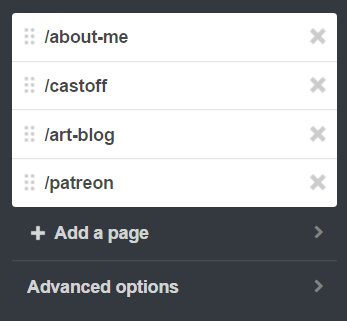
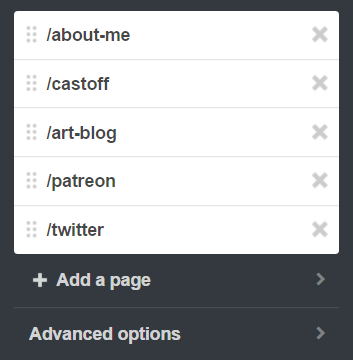
In the theme editor sidebar, scroll all the way to the bottom, the “Page” section. (Here’s what mine looks like- I already have a few of these set up)
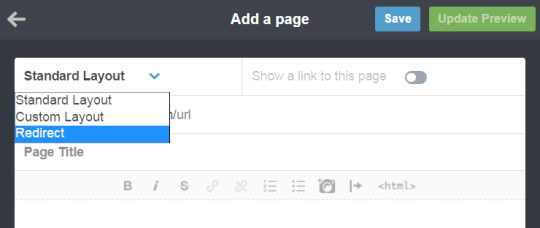
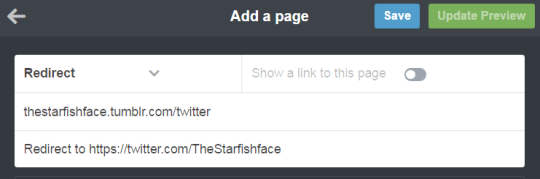
Hit “Add a Page”, and this window will pop up. By default it’s set to be a Standard Page. Hit the dropdown and select “redirect”.
For this example, let’s say I want to link to my Twitter page. I’ll name the page “Twitter” (this is what the redirect URL will end up being- IE yourblogname.tumblr.com/Twitter), and insert my Twitter URL under the “Redirect To” tab. Leave “Show a link to this page” turned off. (Unless you want the link to show up on your blog, in which case, turn it on. Do what you want, I’m not your mom)
Hit “Save”, and your new page should now show up on your Page list!
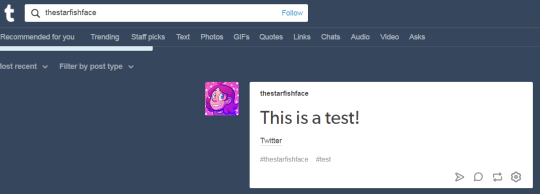
And done! So now, let’s say I wanted to use the new link in the text portion of a post. Simply use the Tumblr redirect link instead of the direct URL! As a test, I linked to my Twitter in a test post, using the redirect link instead of the direct link, and there it is in the tag! Success!
I recommend making a Redirect Page for any external links you’ll be using frequently. I like to post links to my webcomic/Twitter in posts fairly often, but doing that made me take a pretty big hit since my posts wouldn’t show up in tags. With this method, I can keep the external links, and have stuff show up when I tag it! Workarounds are fun!
I love how the search function on this site is absolute garbage. I can look up a post word for word and I will NEVER find it
Pro tip:
Wanna find a post?
Write out what you remember into a Google search.
After you write that out, end with site:tumblr.com
Google will search for your text on just tumblr
In my experience, it’s way more effective than searching through Tumblr
(you can use site:SITENAME.com to search any site btws)
This usually works but for some reason a lot of posts get indexed on google from a person’s URL based on the posts that were recently reblogged on page 1, meaning that this is only a tiny bit more reliable.
I HAVE a solution to this, you have to write down site:tumblr.com/post “ “
and then write a direct quote (could be a fraction of a sentence) into the quotations, I’ve been doing this for years, and it’s so useful, it works like 99% of the time
(the more popular a post is the more likely you’ll find it)
Yes, we haven’t done this in a while… but our inbox and chat are swamped with questions on the subject, so this article was very much needed.
it’s a simple list of art apps, but we know you love those 😀
Enough with the intro, here it is, a list of twelve art apps you may want to check out.
ArtRage is an art program for beginners and professionals. With its minimal interface, it’s easy to keep the essential tools at hand without stealing space from the canvas. Panels can be moved around and tools can be customised. We all know how important it is for digital artists to be able to modify brushes!
Pros: easy to use; friendly interface; essential tools from professional apps available; available for iOS, Android, Windows and Mac
Cons: it may get sluggish with big files and when using big brushes, but performances also depend on the running machine; limited selection of editing tools if compared to Photoshop – ArtRage is more of a painting program rather than an editing one.
Paid
ArtRage Lite is a different version at a cheaper price, mostly for beginners, but also for professionals if they need the essential.
Now free, Sketchbook is the famous app created by Autodesk for various platforms.
Pros: clean, friendly interface; easy to use; professional features
Cons: lack of official tutorials; doesn’t offer as many tools as other apps (it’s down to the essential); paid subscription in Adobe style for the pro version
Free and paid
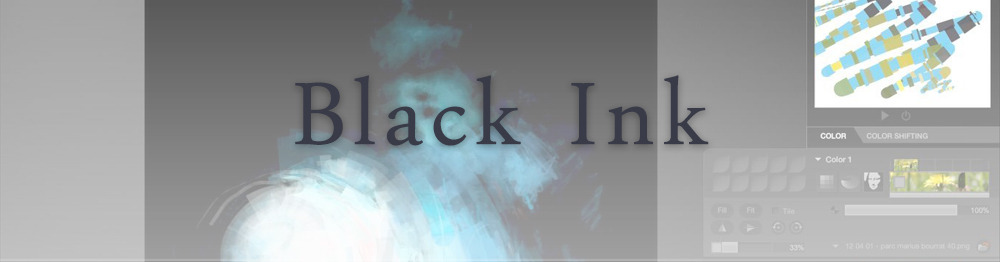
Black Ink is a powerful little program few actually know, but there’s a reason: this isn’t your classing drawing app. What’s cool about it is the vast selection of special brushes, completely non-realistic, and definitely able to boost your creativity.
Pros: vast selection of customisable brushes; excellent performance
Cons: not very easy to use; non-intuitive interface
Paid
This is probably the most complete software for painting, drawing and animation. It was originally known as Manga Studio, but with its updates and addition of features, it became Clip Studio Paint.
This doesn’t say much about the quality of the features themselves considering the affordable price (if you haven’t used the app yet, that is), but among graphic apps, this one is the top seller.
Pros: professional features for illustrators; layout tools for comic/manga artists; 3D reference models; customisable tools; various sales with special prices
Cons: the interface may not appear intuitive at first; the program may lag (again, performance also depends on the running machine)
Paid
GIMP is the famous open source image editor originally created for GNU/Linux and available for OS X and Windows.
Best known as Photoshop’s main competition, this is a manipulation program for both beginners and professionals who love design.
It offers many professional features, making the program a powerful tool.
Pros: professional editing tools; supports different formats; supported by different platforms; active community
Cons: in spite of the simple design, many options are hidden and it takes time to discover all the features; slow startup
Free
Krita is an open source painting app created by artists for artists.
Pros: easy to use; intuitive interface; great brush workflow; brush stabilizer; customisable brushes; general good performance; very enthusiastic, although small, community
Cons: it may be slow or even crash depending on the running computer and the app’s version; very few editing tools compared to Photoshop
Free
MediBang Paint is a free and light app for drawing and painting, perfect for manga and comic creation.
Pros: vast selection of brushes; cloud sharing; friendly, minimal interface (non-desktop app); also available for iPad, iPhone and Android
Cons: requires an account to use all features; non-intuitive interface (desktop version)
Free
Mischief is a sketching app with essential tools, useful for brainstorming and ideation.
Pros: infinite drawing canvas; friendly interface; easy to use; cheap pro version
Cons: few updates; offers only the essential (but that’s the point); no editing/adjustment tools
Free and paid
Corel’s jewel, Painter is the most famous software that offers digital tools able to give a traditional feel to brushes and canvas.
Pros: different selection of media; many professional features; PS-friendly
Cons: certain brushes may work slow; not easy to use at first; the software may crash (this is the most common report); pricey
Paid
Paintstorm Studio is a professional software for digital painting. It’s focused on the use of brushes and blending, which makes the software a little gem in the digital painting field.
Pros: good brush workflow; brush stabilizer; “close gap” feature; customisable interface and tools; professional features; affordable price
With the very sensitive Apple Pencil, Procreate is so easy to use that many artists chose the iPad over the most famous graphic tablets.
Pros: friendly interface; makes it easy to organise files; excellent brush workflow; customisable brushes; video recording; affordable price
Cons: hidden features; only available for iPad
Paid
SAI is a simple app for artists who want to focus on painting and drawing.
It’s well known for its good pressure support and its essential tools for manga artists, but SAI can be used by any kind of artist who wants to paint.
Pros: easy to use; friendly interface; light software; customisable brushes; tons of (non-official) tutorials
Cons: limited selection of tools, even basic ones; limited canvas sizes and uses; it might crash from intensive work, especially with big canvases and brushes; supports only RGB colour mode; lack of support
Paid
We hope you’ll find this list useful.
If you think there are other apps that should have made this list, don’t hesitate to let us know!
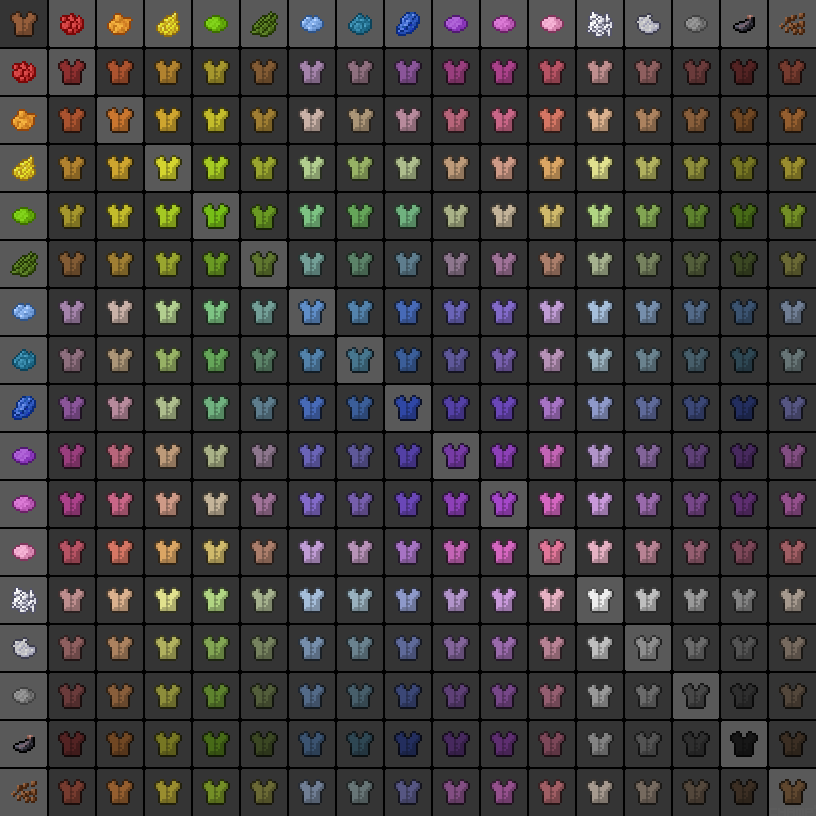
I was dying some leather armor and never realized how many different colors we can create for the leather. I had to do a double take when I started to see colors outside the standard 16. TIL 136 different color combinations! via /r/Minecraft by not-throwaway https://ift.tt/2NKxbUZ











 Time's Vengeance